Weber Update Log
Thank you for your ongoing support for Weber. In the future, the Weber team will continuously update the version to enhance the functionality and visual experience of the Weber platform. We will regularly update the Weber platform — please check the content of this section periodically to stay informed about the latest improvements and new features.
Gmail and 163 accounts cannot use passwords directly; you must obtain an authorization code instead. Specific requirements vary by email provider.
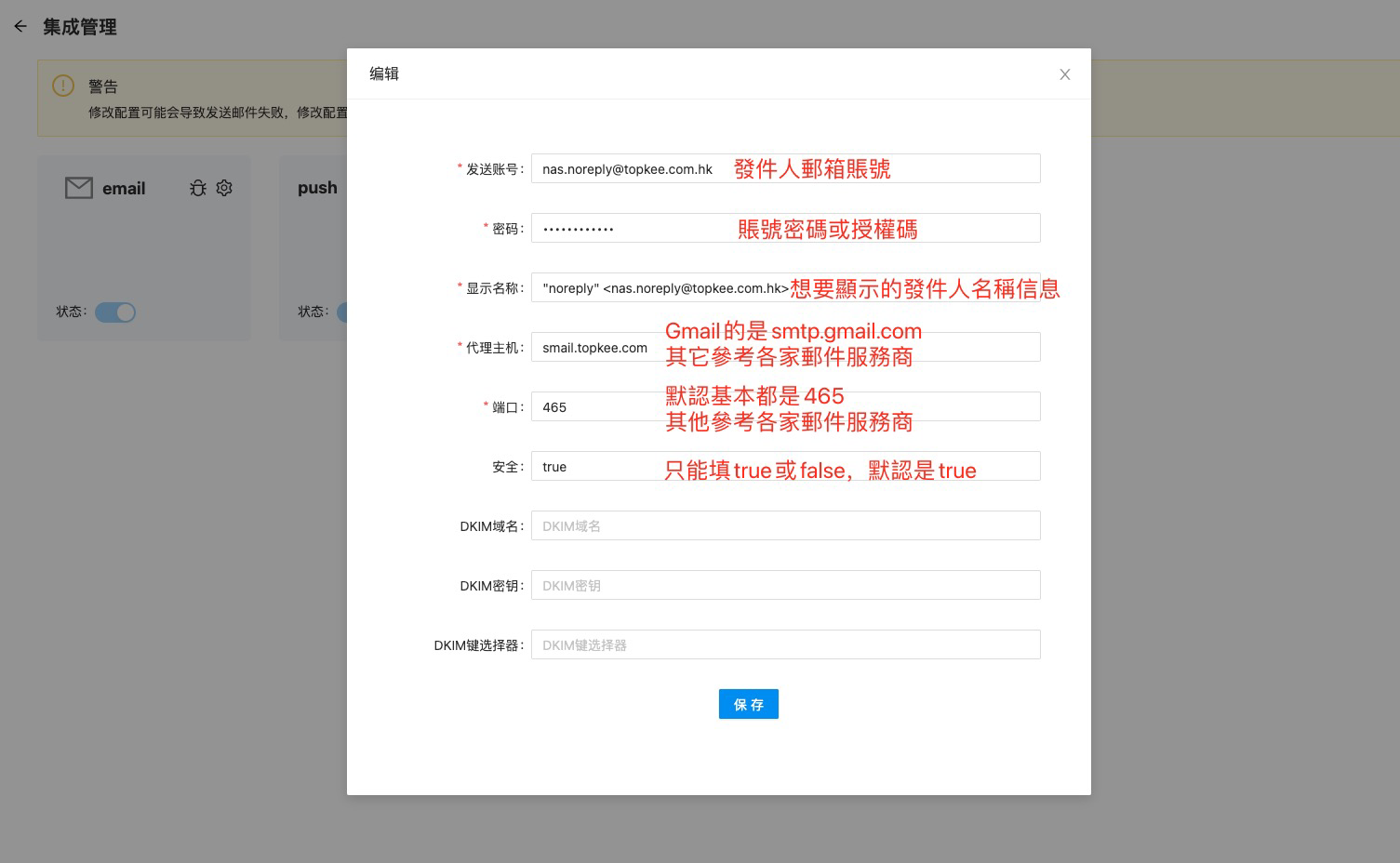
Here’s a guide using Gmail as an example.
Enable SMTP/IMAP Service
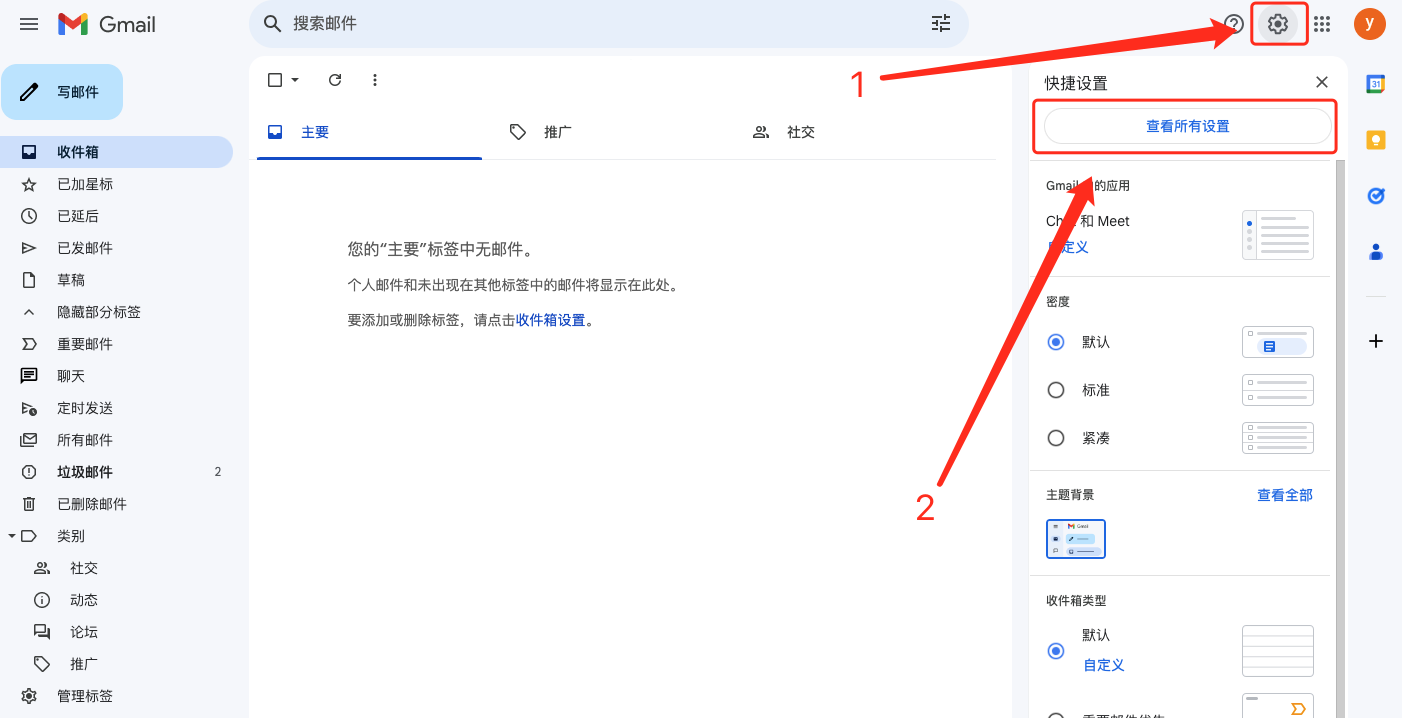
Log in to your Gmail account → Click the gear icon in the upper-right corner → Select "See all settings".
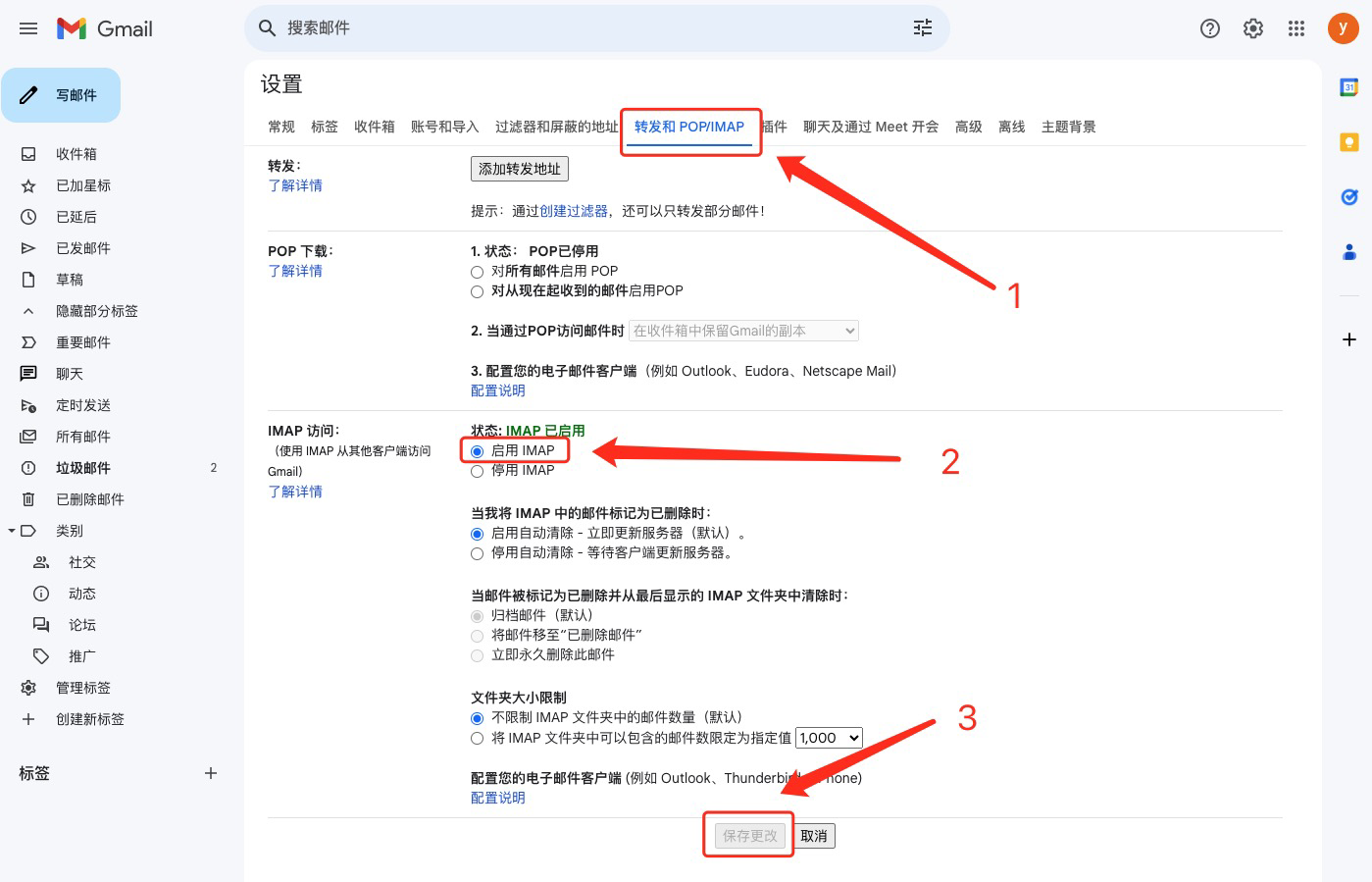
Navigate to "Forwarding and POP/IMAP" → Enable IMAP (default is disabled) → Click "Save Changes".
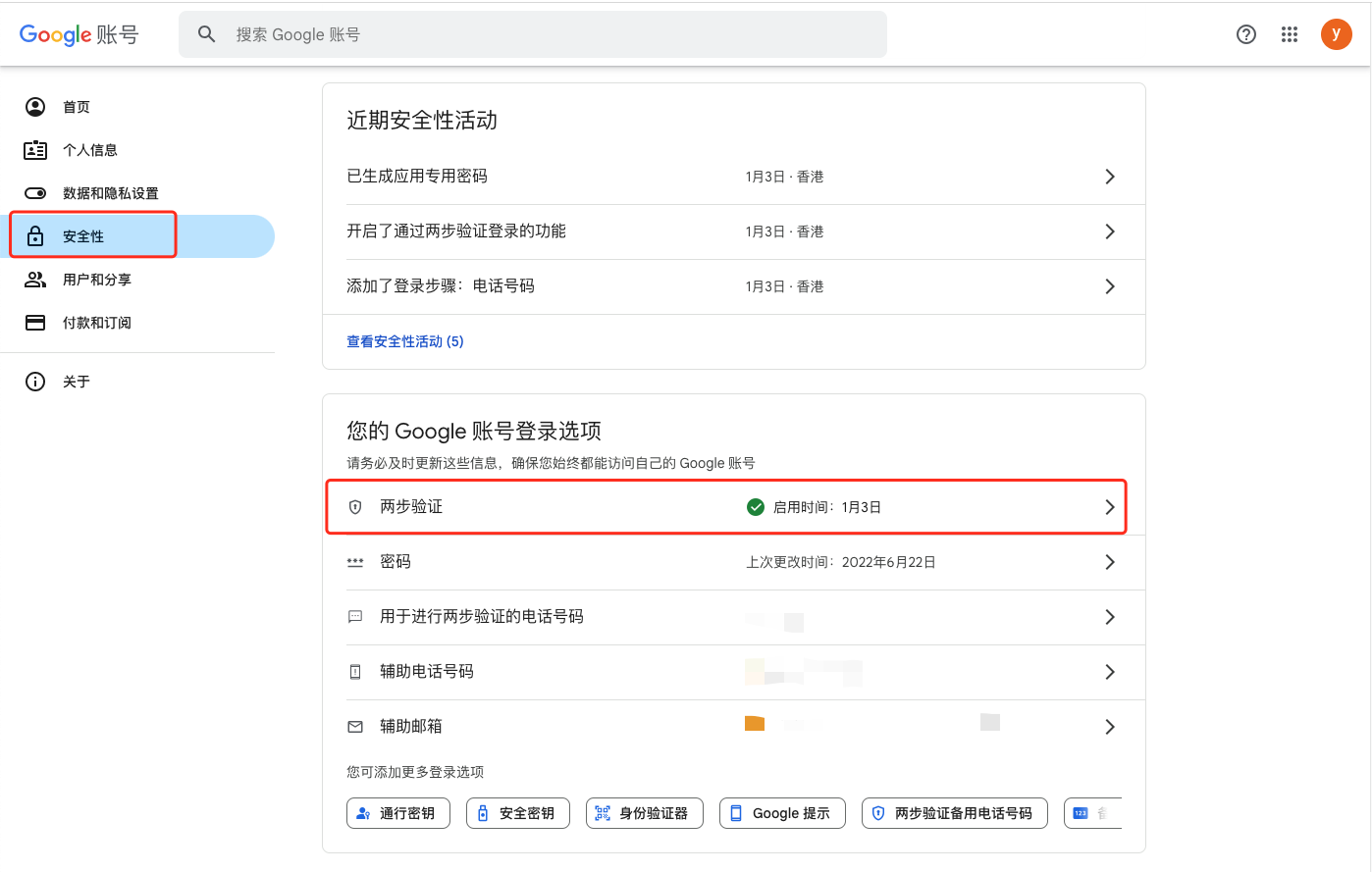
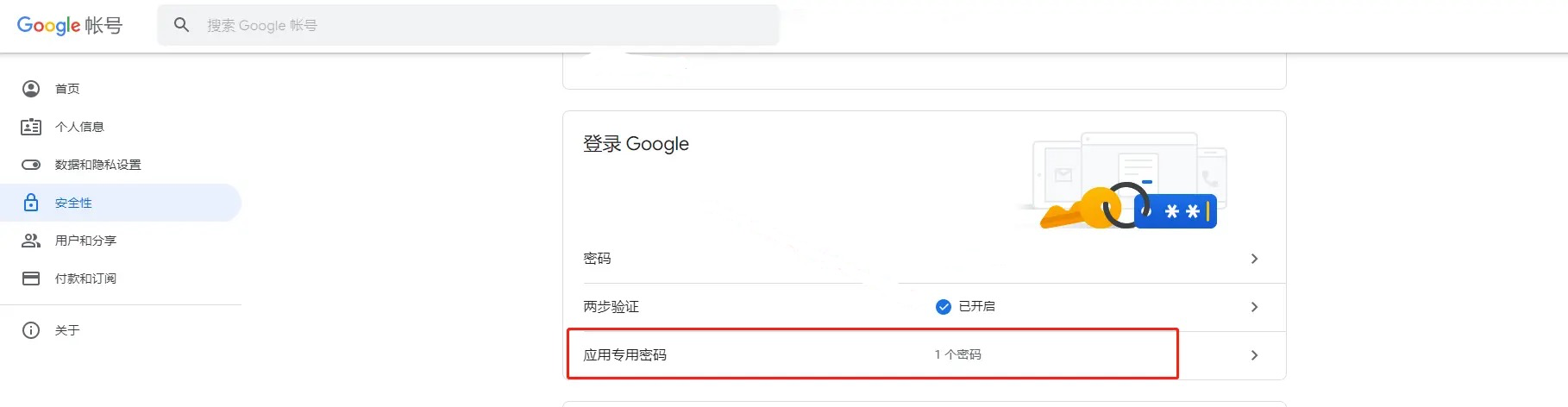
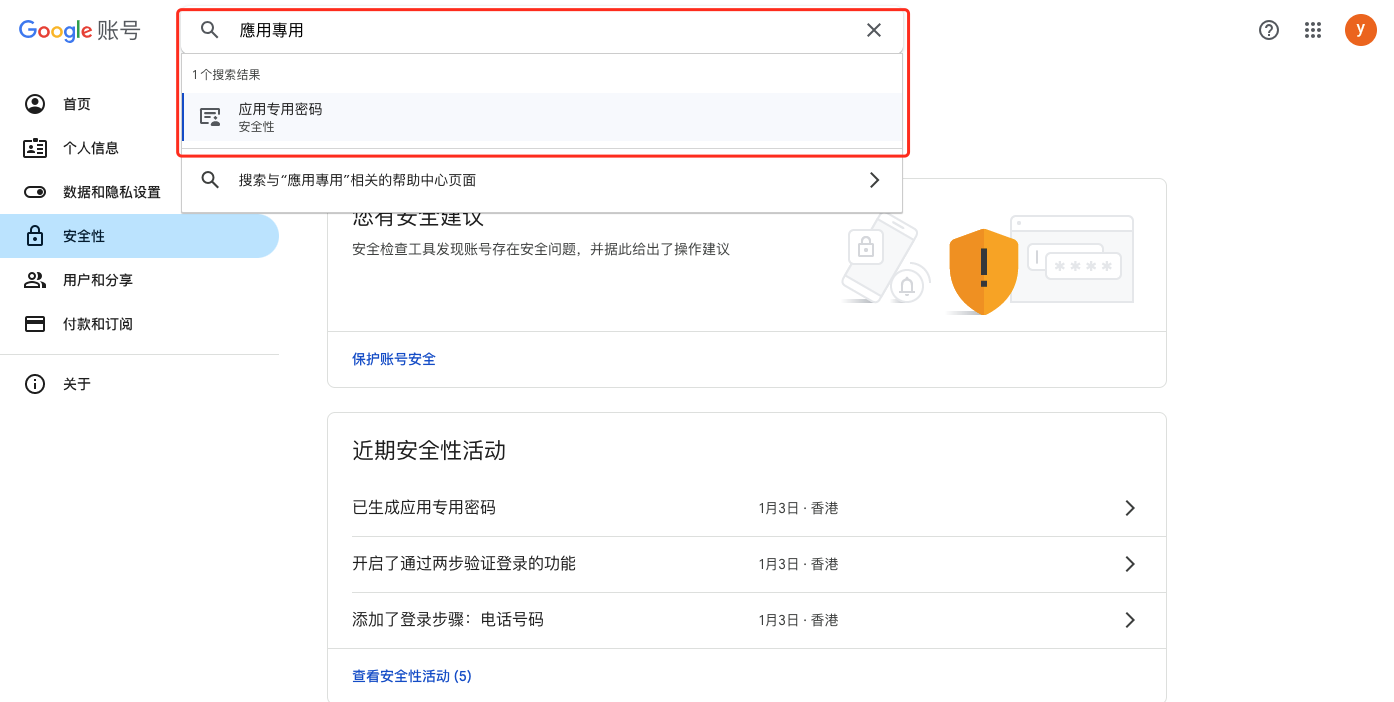
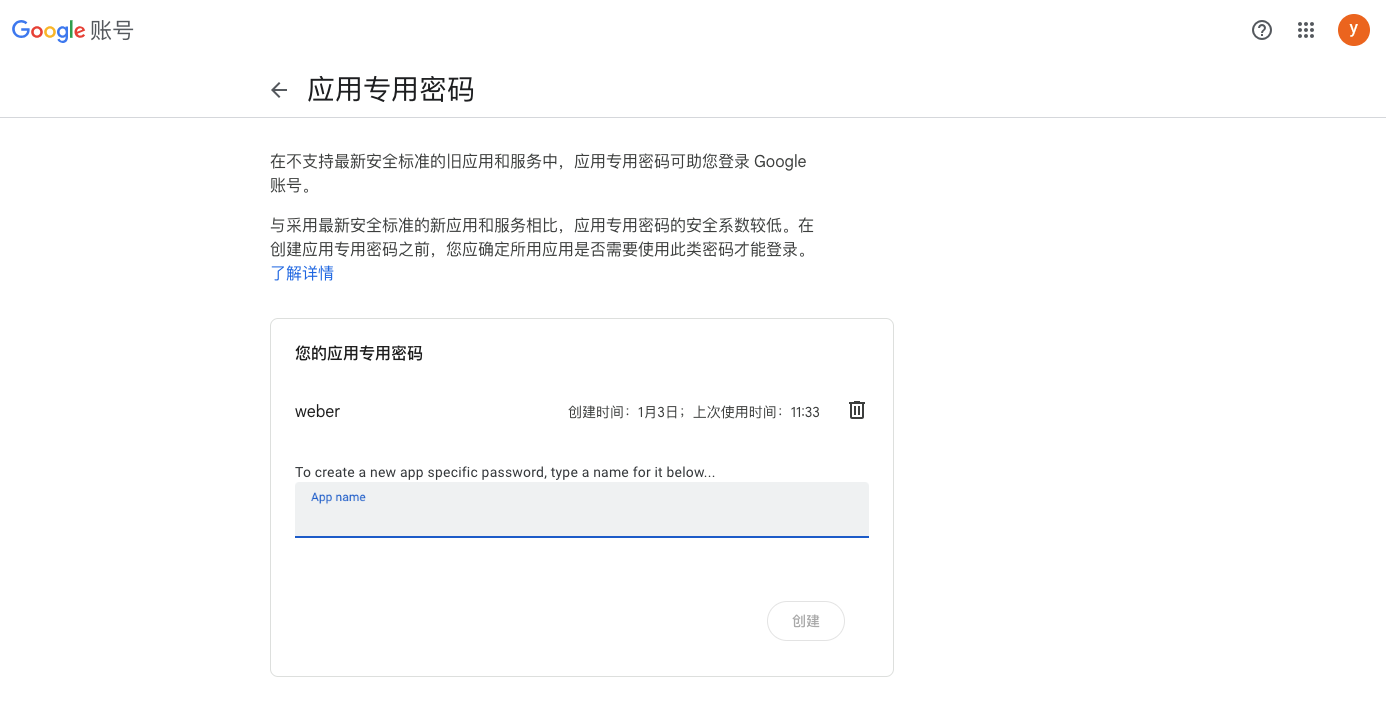
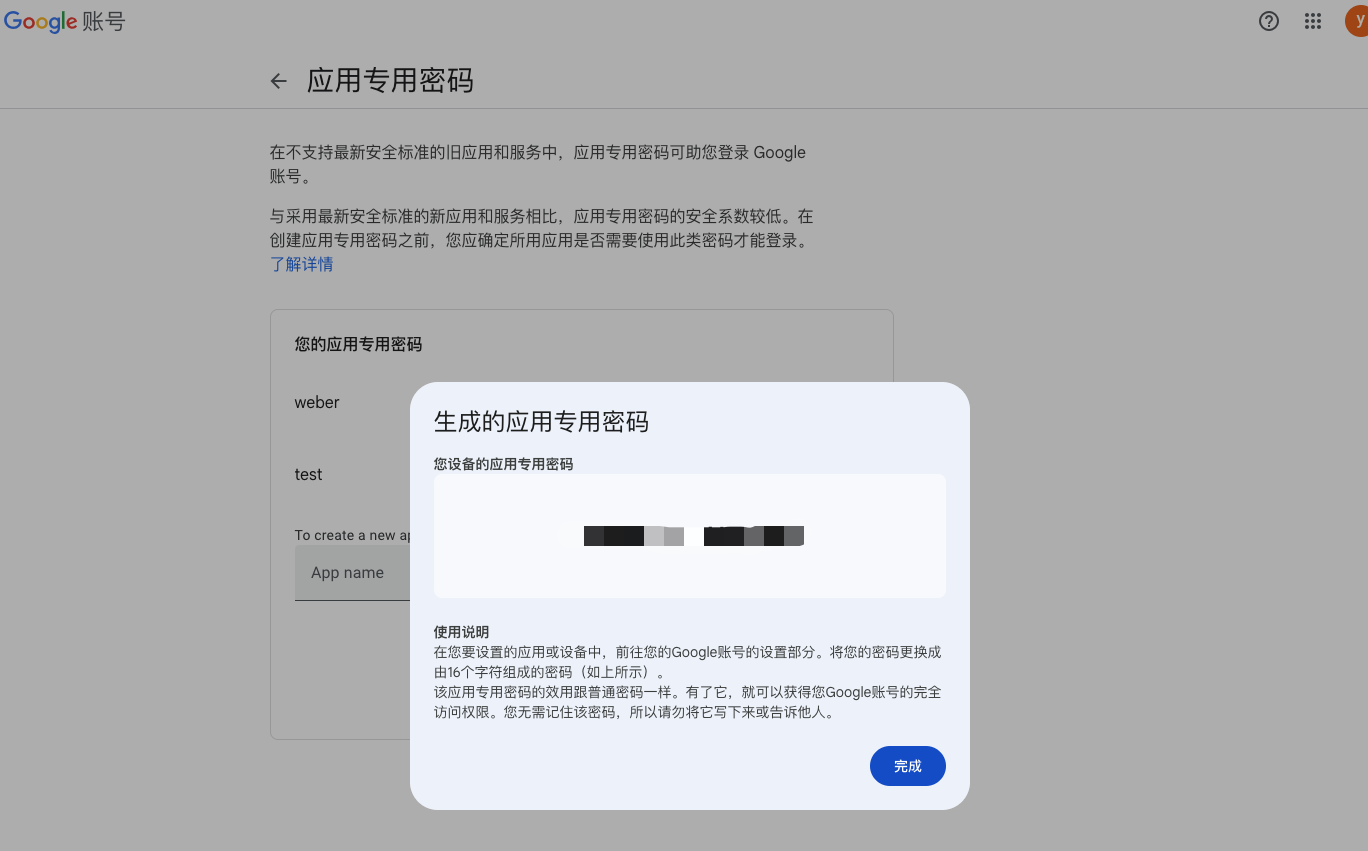
Generate App-Specific Password
Category:Email setting
Share to:

WEBER is a simple website builder. Whether you need a professional company website, a beautiful portfolio, or an easy-to-use online shopping mall, WEBER can provide you with satisfactory building services.


Online Shop
WEBER FROM TOPKEE'S BRANDS
© 2024 Weber All Right Reserved