Weber Update Log
Thank you for your ongoing support for Weber. In the future, the Weber team will continuously update the version to enhance the functionality and visual experience of the Weber platform. We will regularly update the Weber platform — please check the content of this section periodically to stay informed about the latest improvements and new features.
Link block(You can turn the area within the link block component into a link)
Only "image components" and "text components" can be placed in link blocks. Other components with link attributes such as "button component" and "icon component" cannot be placed, and nested links are not allowed.
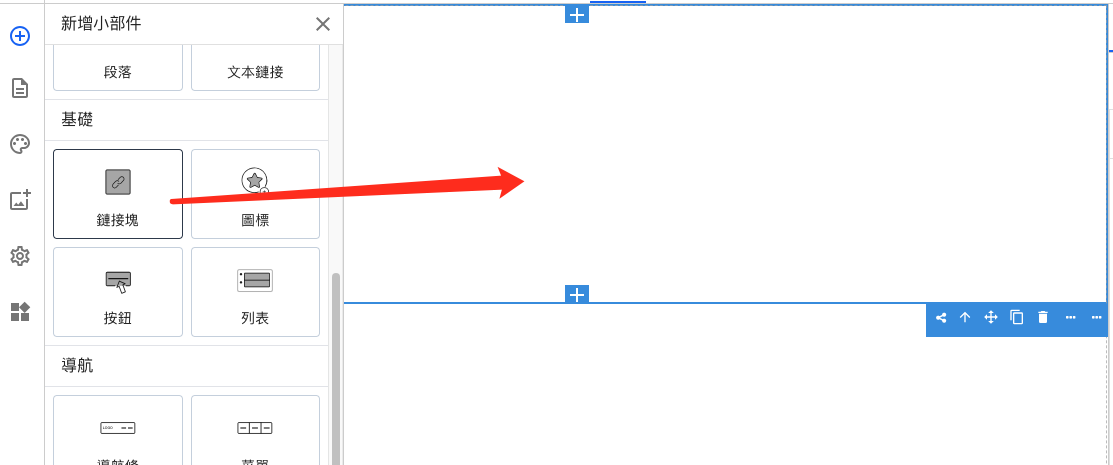
First, drag the "Link Block" in the left component bar and drop it into the target area.
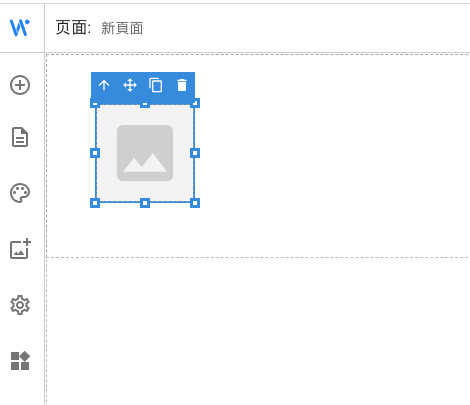
Then drag and drop the "Component to be linked" into the "Link Block".
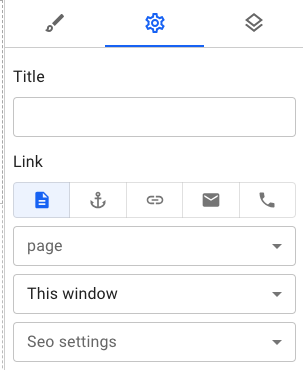
Select "Link Block" in the footprint below, and you can set the linked page, page anchor, URL, Email, and phone number on the right side.

Category:Base
Share to:

WEBER is a simple website builder. Whether you need a professional company website, a beautiful portfolio, or an easy-to-use online shopping mall, WEBER can provide you with satisfactory building services.


Online Shop
WEBER FROM TOPKEE'S BRANDS
© 2024 Weber All Right Reserved